
We've added some new options to the j2create drawing tools, giving users more ways to create and customise their work.
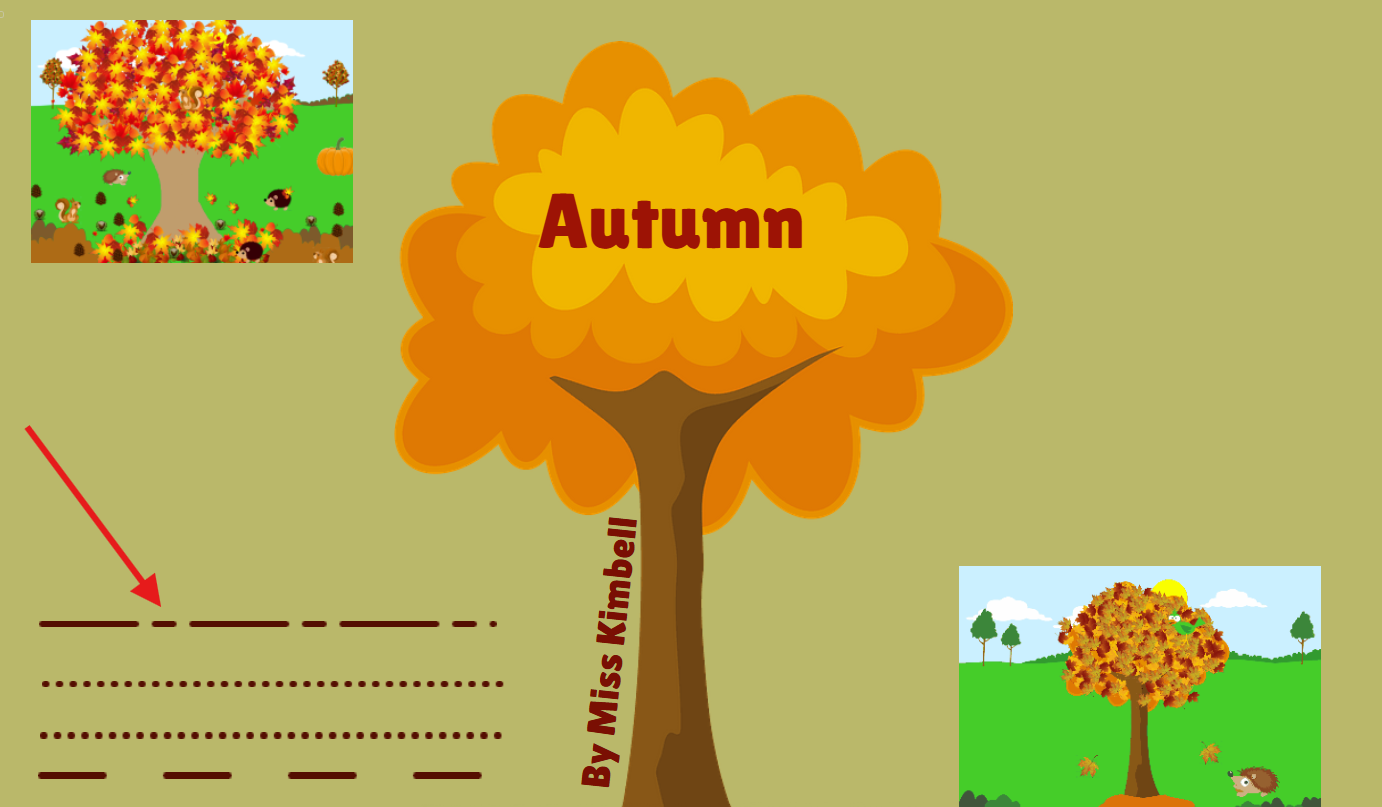
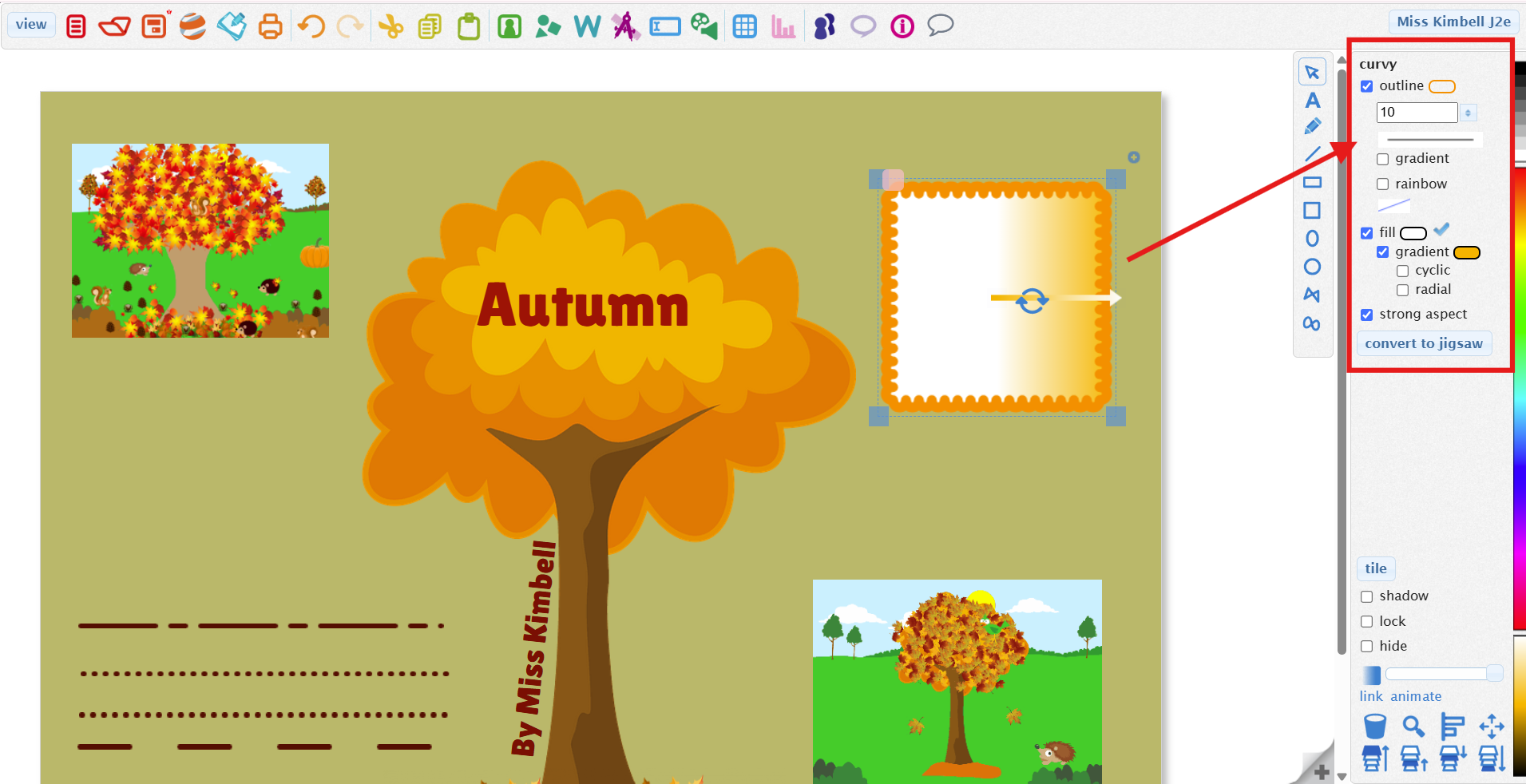
You can now use dotted and dashed lines, as well as access a wider range of polygon shapes in the shapes library.
These additions provide more creative possibilities for pupils when designing pictures, posters, diagrams and other digital projects.
Use dotted and dashed lines
Open j2create and create a new project or open an existing one.
The Drawing/shape tools can be found on the toolbar along the right hand side.
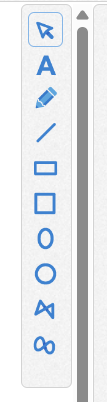
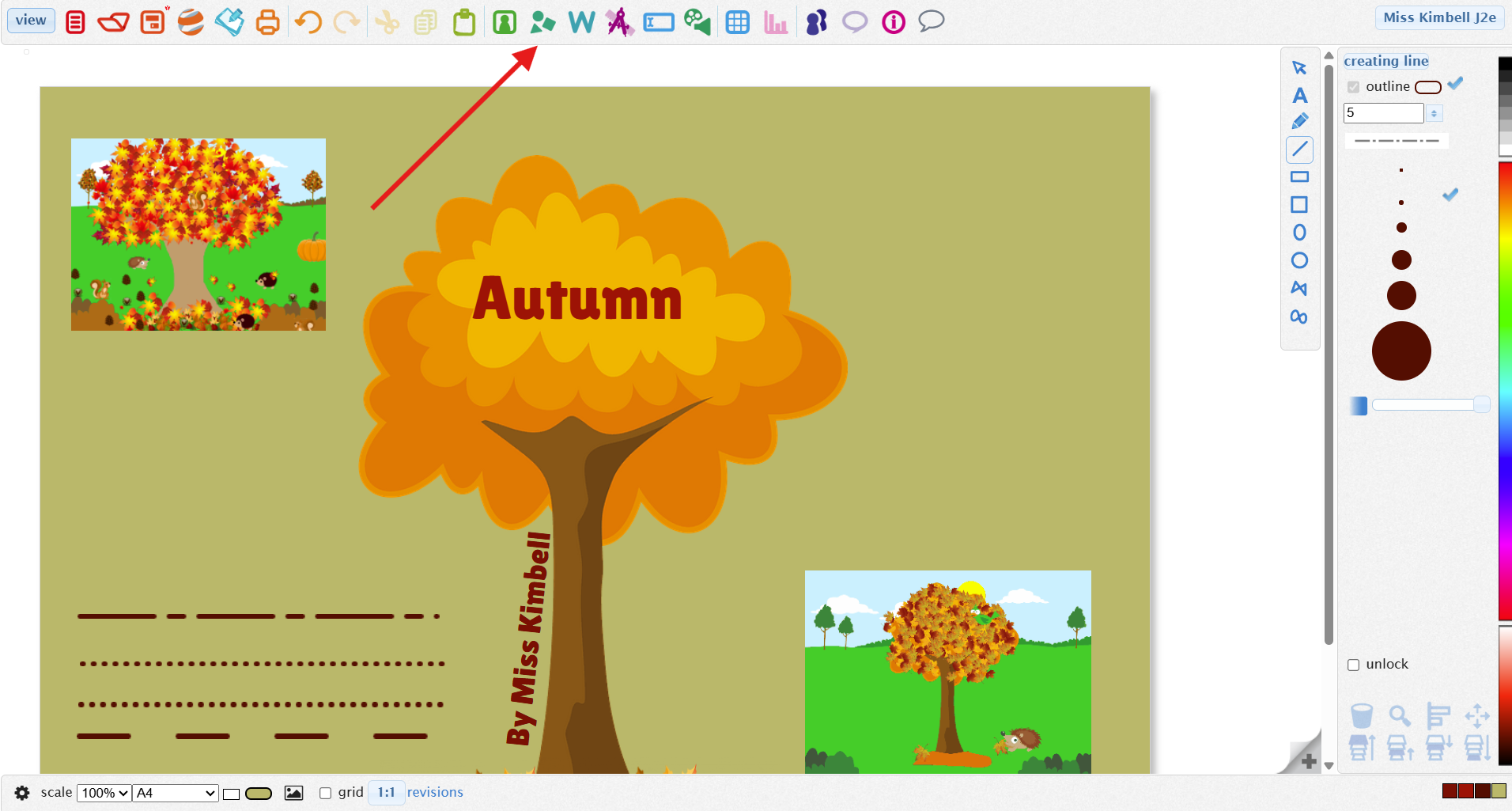
Choose the line tool.
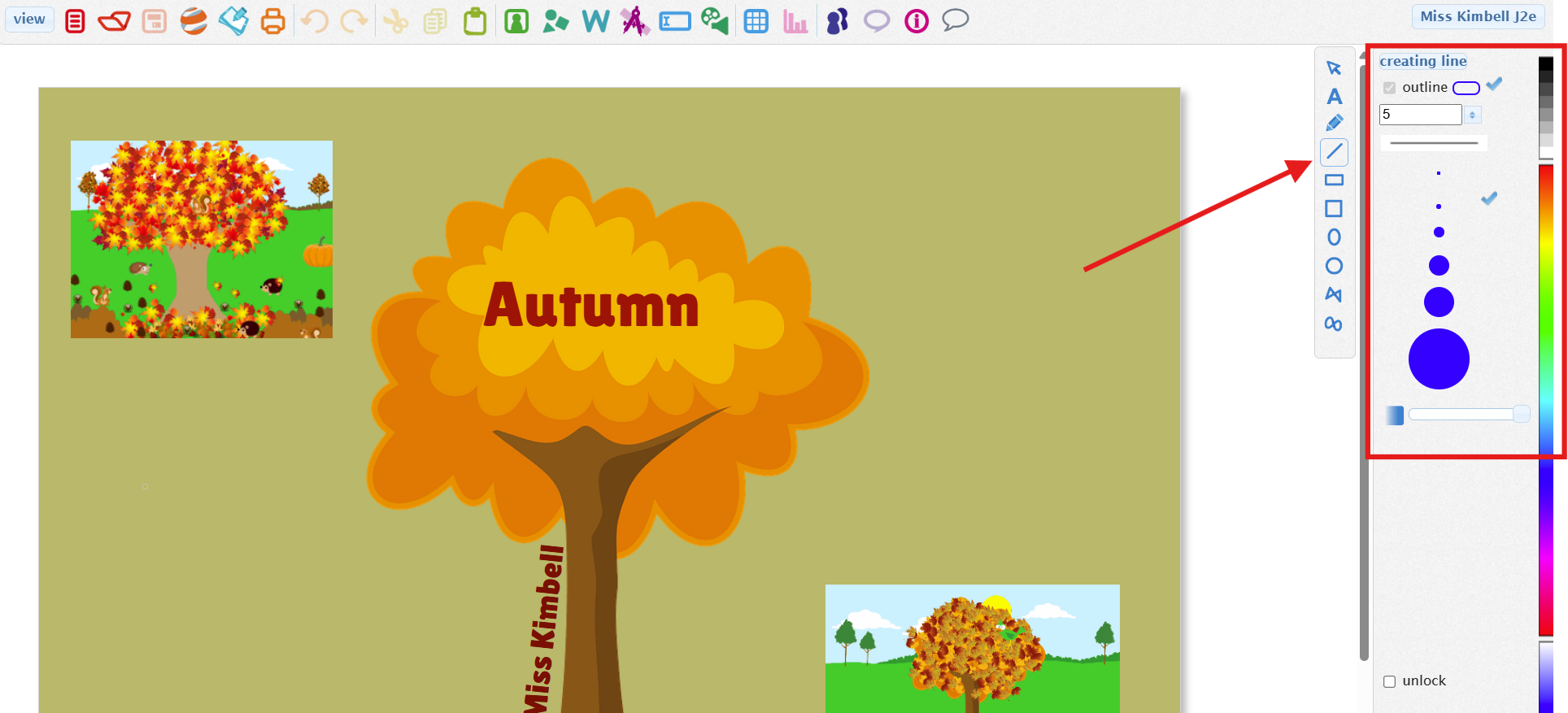
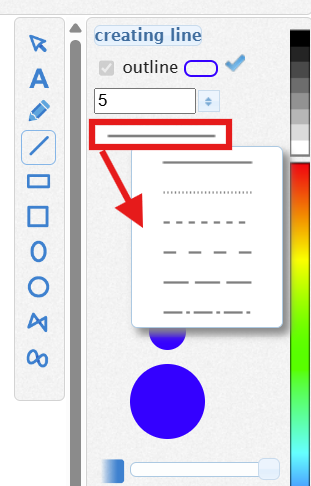
Select your preferred line style:
Solid
Dotted
Dashed
Adjust the line colour and thickness to suit your design.
Click and drag on the page to draw your line.
Add polygon shapes
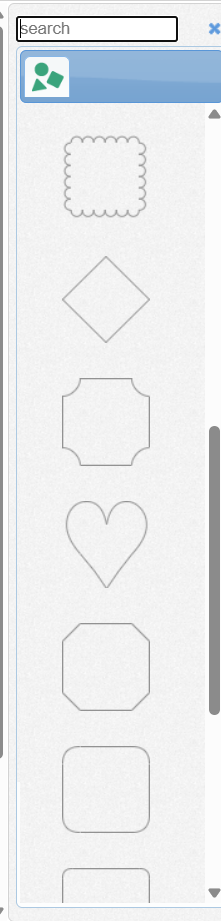
Open the Shapes library within j2create.
Browse the available shapes.
Select the shape/polygon you want to use. Click and drag on the page to add the shape.
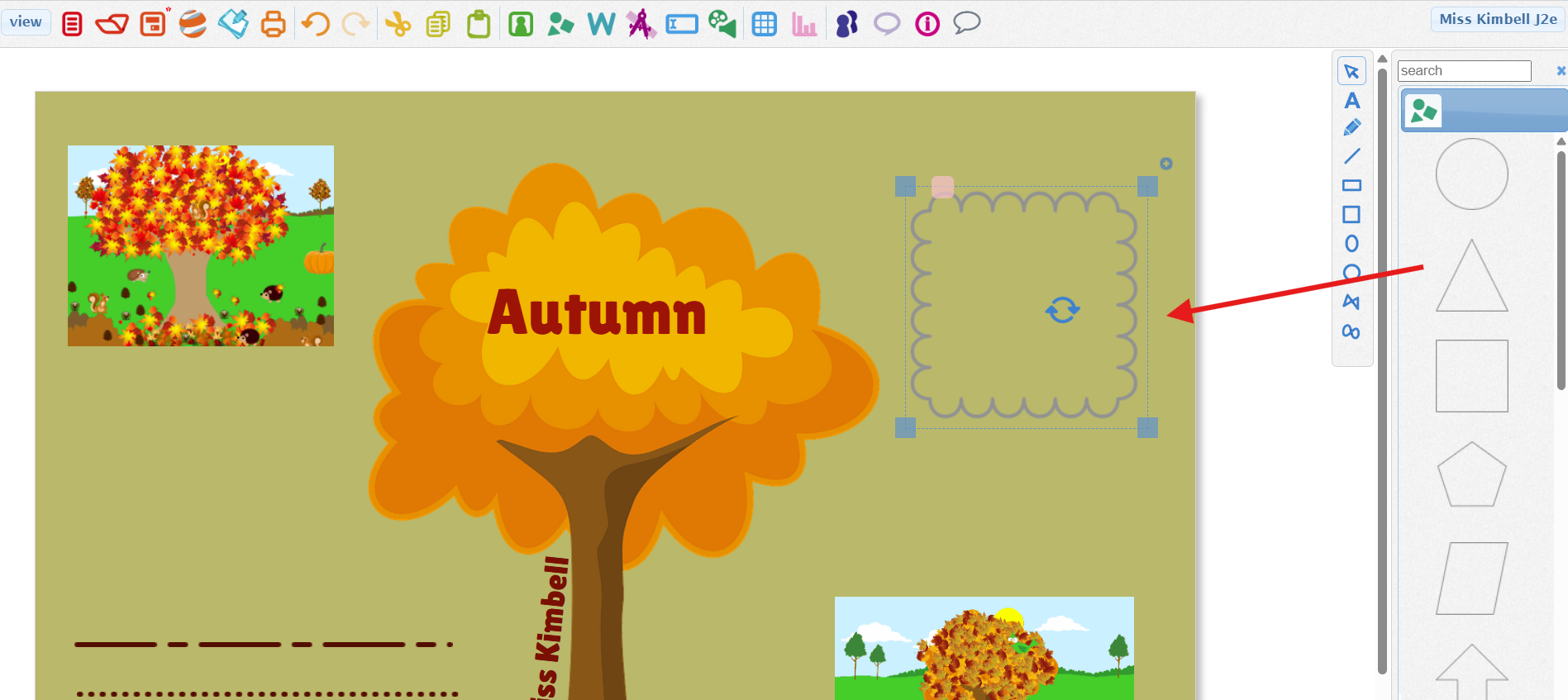
Resize, reposition and customise your polygon as needed.
Helpful tips
These new drawing options are useful for a range of classroom activities:
Maths: Explore 2D shapes, polygons, sides and vertices.
Art and design: Create patterns and more detailed illustrations.
Diagrams: Use dotted and dashed lines to show connections, boundaries or movement.
Creative projects: Add variety and detail to posters, maps and digital presentations.
Top tip: Challenge pupils to create a picture using only polygon shapes and different line styles!